Mining with CryptoDredge
Downloading and Installing for Windows or Linux
CryptoDredge can be downloaded from the GitHub page.
CryptoDredge Setup and Configuration
- Unzip the file and extract the files into a new folder (Make sure your anti-virus doesn't delete the files)
- Open the
config.jsonfile with Notepad. - Find and change the following lines:
   algo: "[algorithm]"
   url: "[pool address]"
   user: "[wallet address]"
- Instead of
[algorithm], simply type Chukwa. - In place of
[pool address], you'll need to choose a pool to mine towards. You can learn more about them here. - Instead of
[wallet address], simply paste your Zent Cash wallet's address.- If you don't have one yet, you can find out how to create a wallet here
Example config.json
{
  "algo": "Chukwa",
  "url": "stratum+tcp://ztcpool.sytes.net:10105",
  "user": "Ze4artgLD3pXn4YY1m4HREYsG5ZPE5dew5kxmuY6WtRa3tdAhnGgbqD6dtmX6wkidnX9uRgdtQsf1bvYoFhZjsvp1fUWd9Pqh",
  "pass": "x",
  "worker": "rig0"
}
-
Save the file.
-
Start Binary.
CryptoDredge.exefor Windows../CryptoDredgefor Linux.
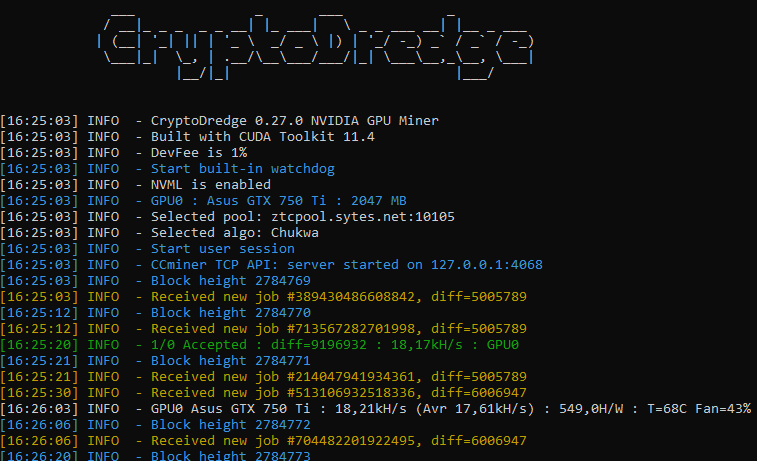
That's it! You should be mining away now!
Troubleshooting
Most issues are usually because of out-of-date GPU drivers, if the miner doesnt work or cannot detect your GPU, try updating to the latest drivers!
- No CUDA! Many Nvidia miners require CUDA to function properly. You should download and install the latest CUDA toolkit for your Nvidia card.